CRM Overview
What the ANC CRM is, how to log in, and a tour of every surface you'll actually use.
CRM Overview
The ANC CRM is the system of record for every account, contact, deal, and activity at ANC Sports. It replaced Salesforce in April 2026. Live at crm.ancsports.net.
If you remember one thing: everything is account-centric. Every ticket, opportunity, person, venue, estimate, and design request shows up on the Company page for that account. Open the Company, see everything.
The CRM connects with the Proposal Engine and Service Dashboard so account, deal, proposal, ticket, and venue activity stay in one place.
Logging in
- Go to crm.ancsports.net
- Sign in with your ANC email (Google SSO)
- Top-left, the app switcher must say ANC. If it says Standard, click it and pick ANC. All ANC dashboards, views, and folders only show inside the ANC area.
If you land on a blank Standard page with no familiar dashboards, switch to ANC once and the CRM remembers it.
Companies
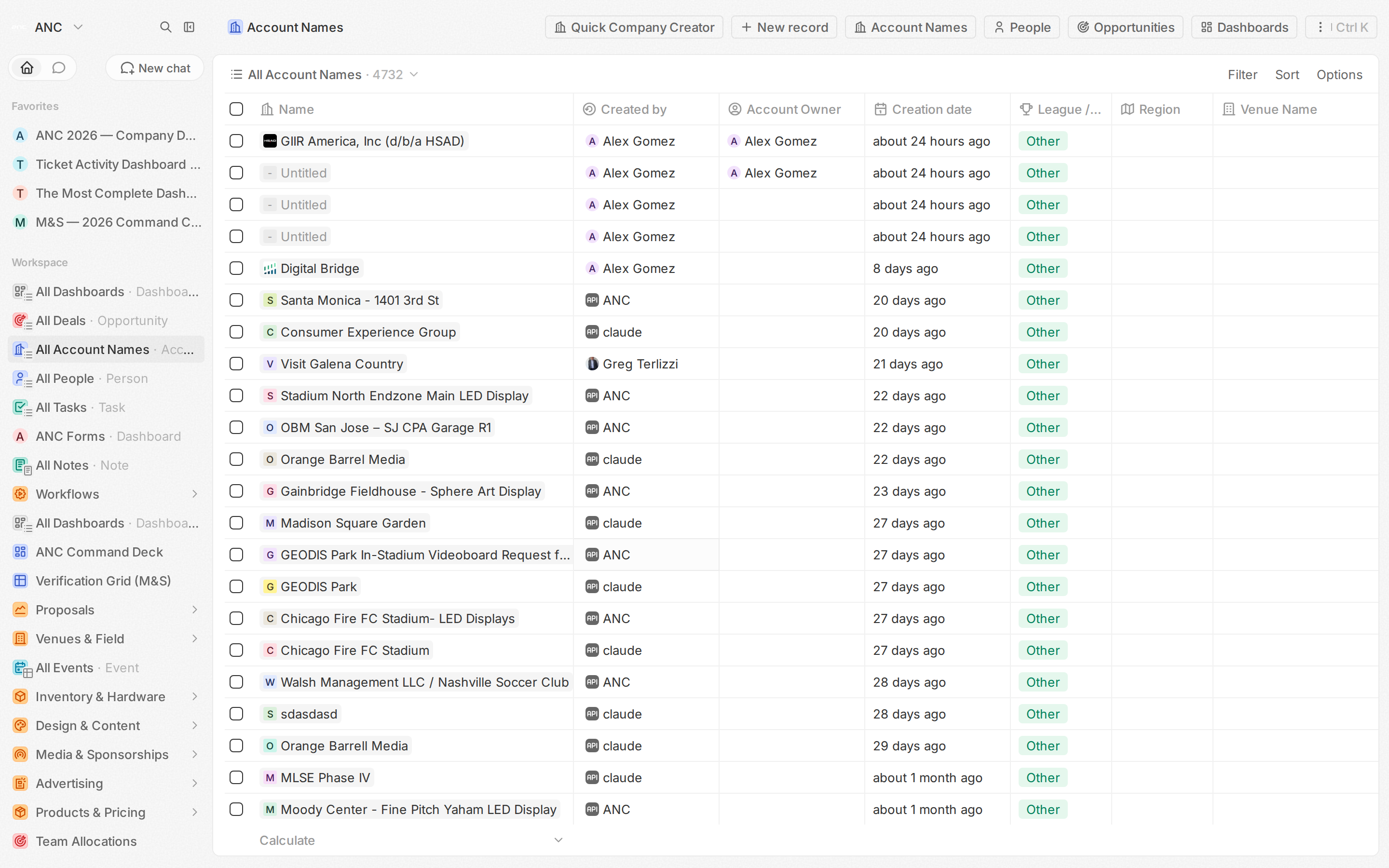
The account ledger — every client, venue, and partner organization. 3,730 records.
What to do here:
- Search before creating. Type the name in the search box at the top before clicking "+ New". 20+ duplicates have been merged so far.
- Open a Company to see everything. The detail page has tabs for Opportunities, Revenue Splits, Tickets, Estimates, Design Requests, RFP Analyses, Team Allocations, and Venues. This is the fastest way to answer "what's the full picture on this account?"
- Filter by vertical. The
revenueTypefield tags each company asTECHNOLOGY,VENUE_SERVICES, orMEDIA_SPONSORSHIP. Use the column filter in list view. - Bulk-merge duplicates. Select multiple rows in list view, then use the bulk action menu. See Merge duplicate Companies.
Opportunities
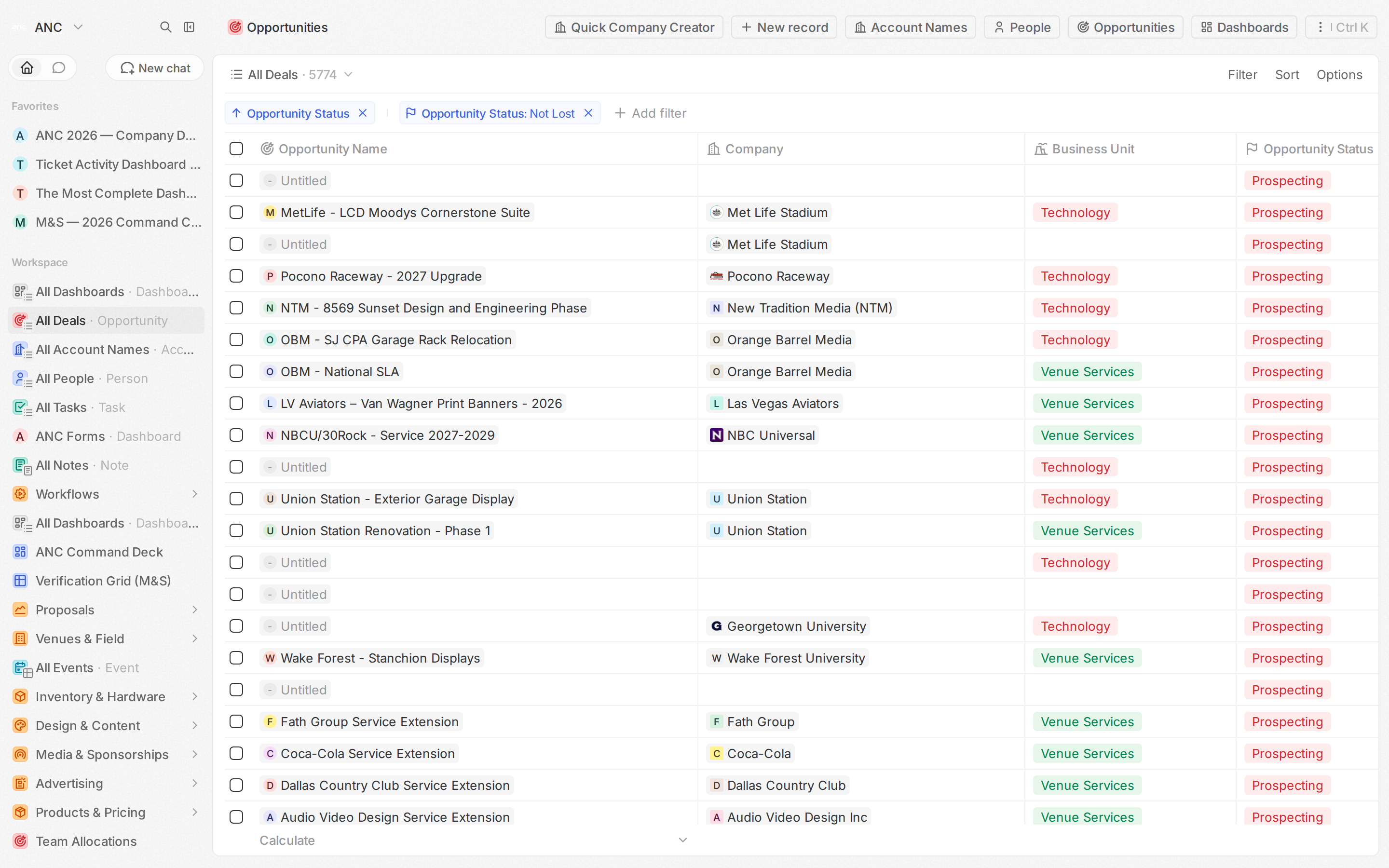
Every deal in flight — RFPs, sales leads, budgeted projects. 8,360 records.
What to do here:
- Use the kanban for pipeline movement. Drag cards across columns to advance
bidStatus(RFP_RECEIVED → SCOPING → BID_SUBMITTED → SHORTLISTED → WON). - Use the list view for bulk work. Sorting by
proposalDueDate, exporting to CSV, bulk-editing fields. - The two key fields:
dealValue(what the customer pays) andamount(recognized revenue). Always setdealValuewhen pricing finalizes;amountpopulates through the proposal flow. - Pricing complete? Toggle
pricingComplete = TRUEon the Opportunity.pricingCompleteDateauto-stamps. The Estimation & Proposals view filters on this flag. - Per-year revenue: Fill
revenue2026,margin2026,revenue2027,margin2027directly on the Opportunity, or add child Revenue Split records for detailed breakdowns. Dashboard widgets read the flat fields.
The full lifecycle, fields, and reporting model: Opportunities.
People
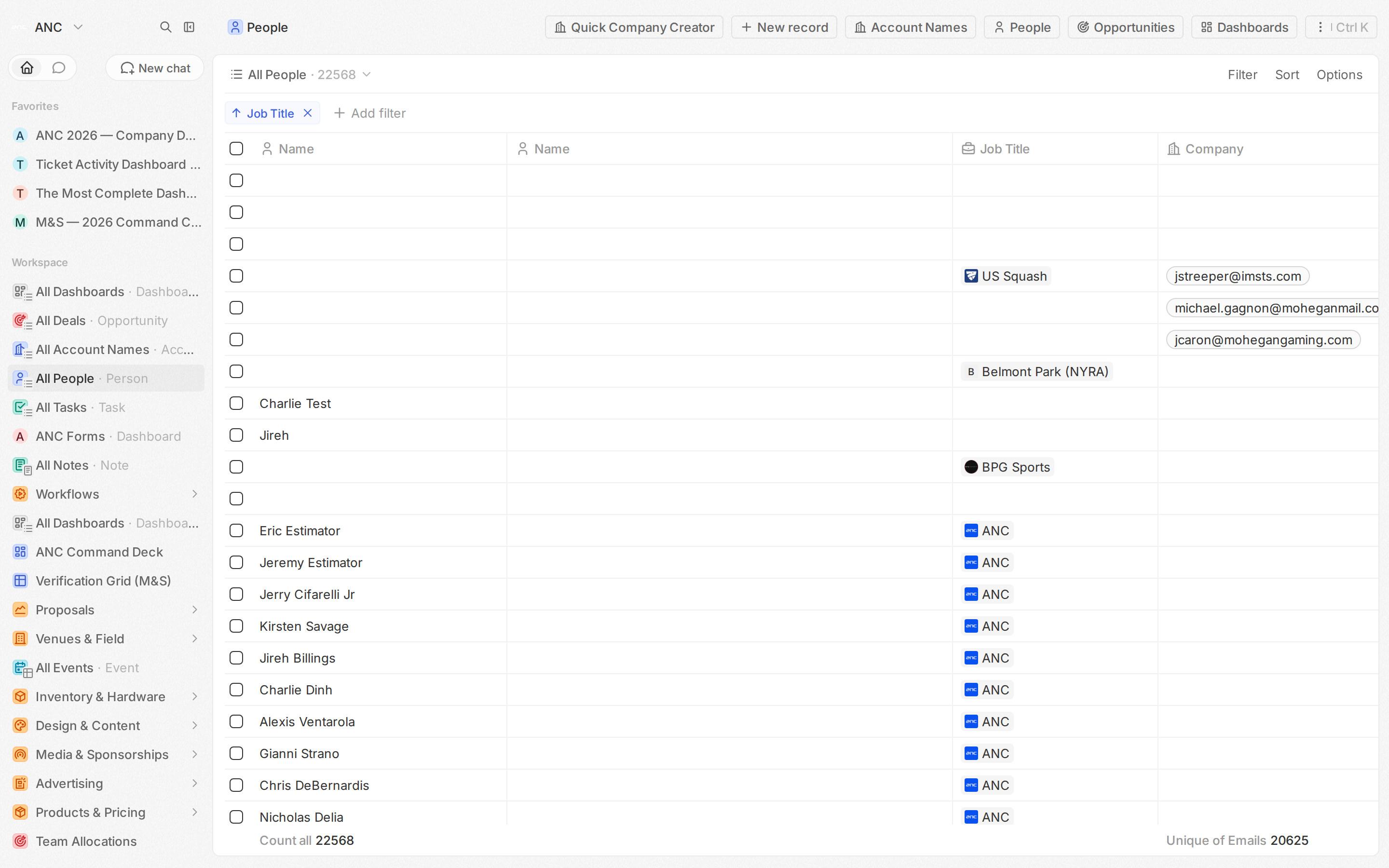
Contacts — both client-side and internal. 19,966 records.
What to do here:
- Always link
companyfirst. Don't create a contact floating without an account — the relationship is what makes the CRM useful. - Search by email or phone. Both are first-class fields, both are indexed.
- Bulk-import a contact list. Use the CRM import flow or ask an admin to run a controlled import.
- Tasks tab on a Person. Logs every follow-up tied to that contact. Useful for tracking outreach cadence.
Tasks
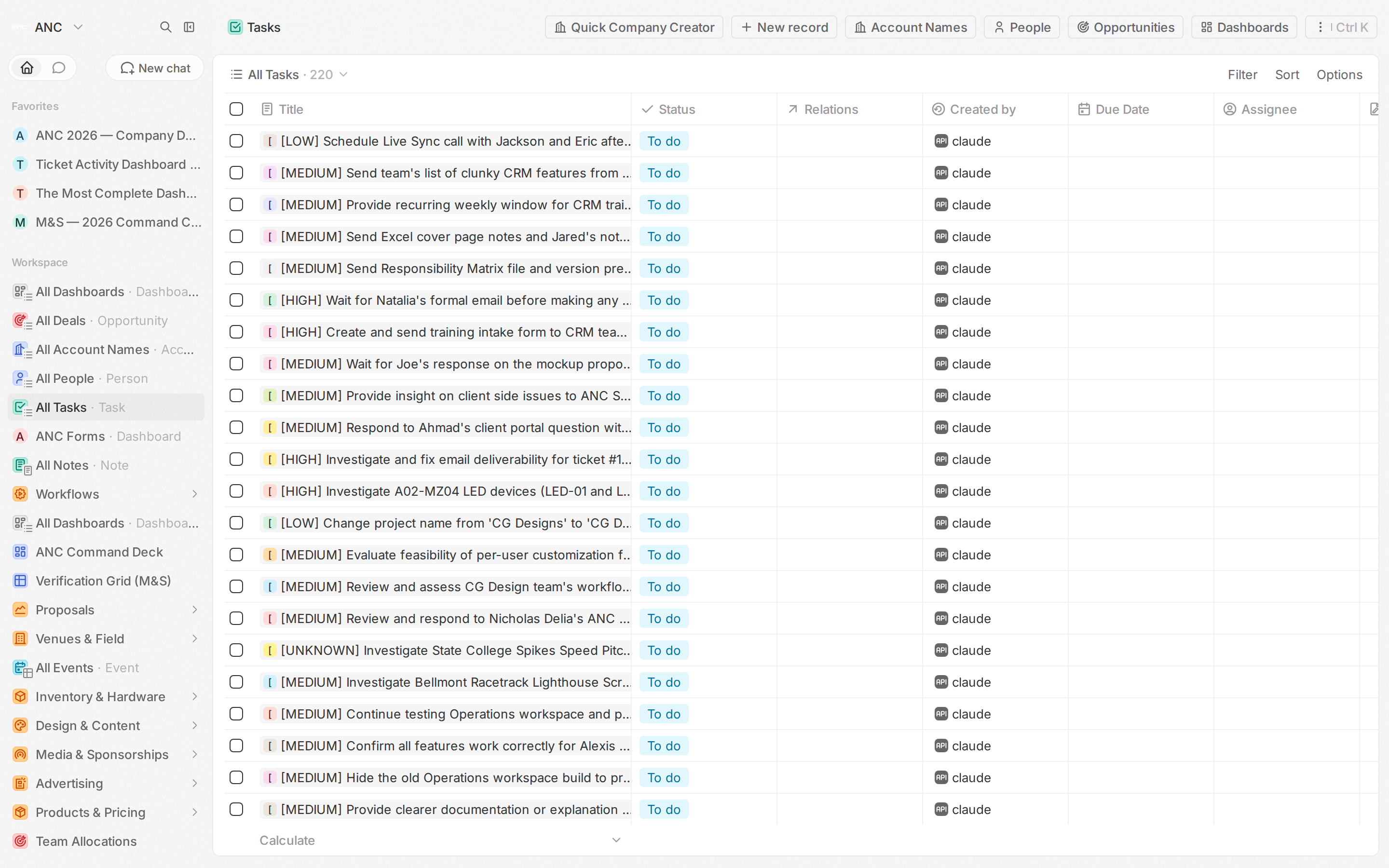
The shared activity queue — follow-ups, prep work, hand-offs.
What to do here:
- + New Task from any record. The task auto-links to that record, so you never have orphan tasks.
- Assign to a teammate. They get a notification; the task surfaces in their My Tasks list.
- Due date filtering. The default views split into Today / Upcoming / Overdue. The overdue list is the one you check first thing in the morning.
- Mark complete. Tick the checkbox in list view — no need to open the task.
Notes
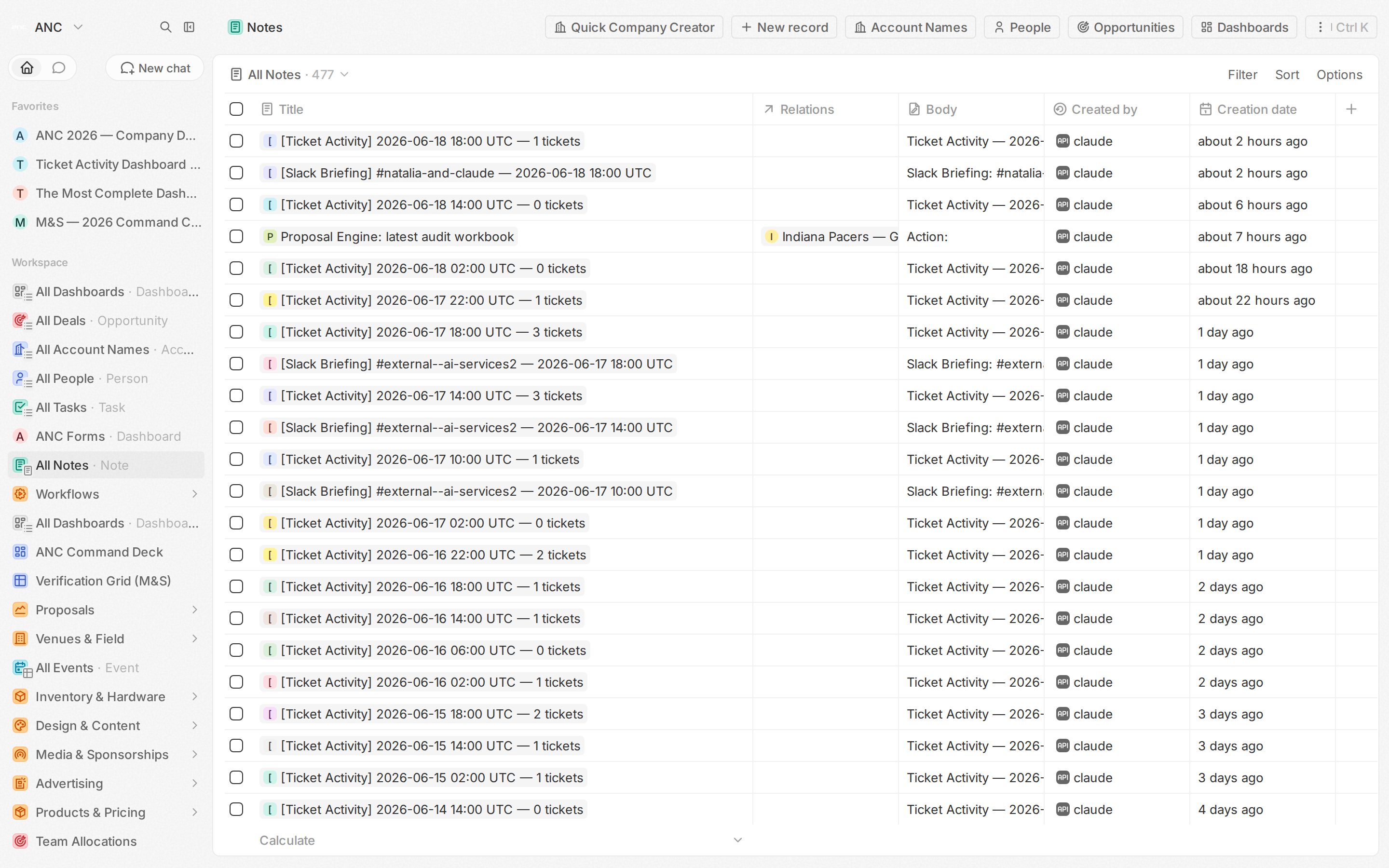
Long-form context — meeting notes, account history, decision logs.
What to do here:
- + New Note from a Company, Person, or Opportunity. Same auto-linking pattern as Tasks.
- Rich text — headings, bullets, tables, code blocks. Use it for meeting recaps and call summaries.
- Search across all notes. The global search bar at the top searches Note bodies, not just titles.
Settings
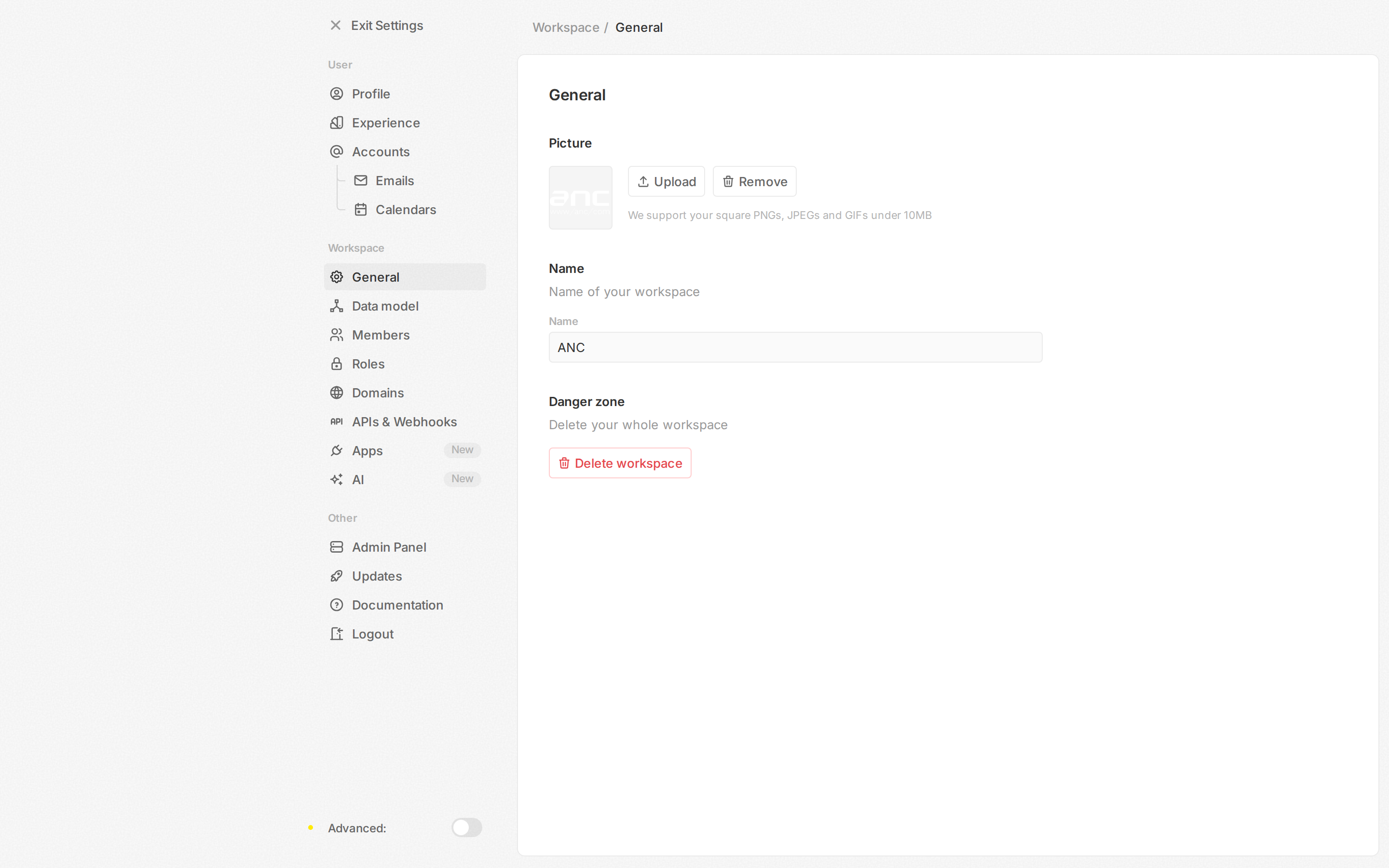
Workspace structure: members, roles, objects, fields, and integrations.
What to do here:
- Members & Roles — invite new users, set role-based permissions.
- Objects — add custom objects, custom fields, and pickup options.
- Integrations — connect approved systems through admin-managed access.
- Custom Skills — Scout custom agent skills (the AI assistant's brain). 30 skills wired so far. See Scout Skills.
Most users will not need Settings. CRM admins manage those areas.
The AI assistant — Scout
The little chat bubble in the top-right is Scout — the CRM's named AI assistant. Click it, type a question, get an answer that pulls from the live CRM data.
Examples it actually answers correctly:
- "margin on Knicks deals this year"
- "which deals are due this week"
- "top open deals by value"
- "create a touchdown graphic for Louisville, night vibe"
Full skill reference: Scout Skills.
Where to go next
- First time on the CRM? Read Discover ANC CRM for the wider picture, then come back.
- Ready to log a deal? How to log a new RFP.