Proposal Engine Overview
A module-by-module tour of the Proposal Engine — what each surface does, when to use it, and what to do once you're there.
Proposal Engine Overview
A practical tour of every module in the Proposal Engine. Live at proposals.anc.com.
Use this page to figure out which module you need; use the Features section for the deep-dive on each one.
Projects
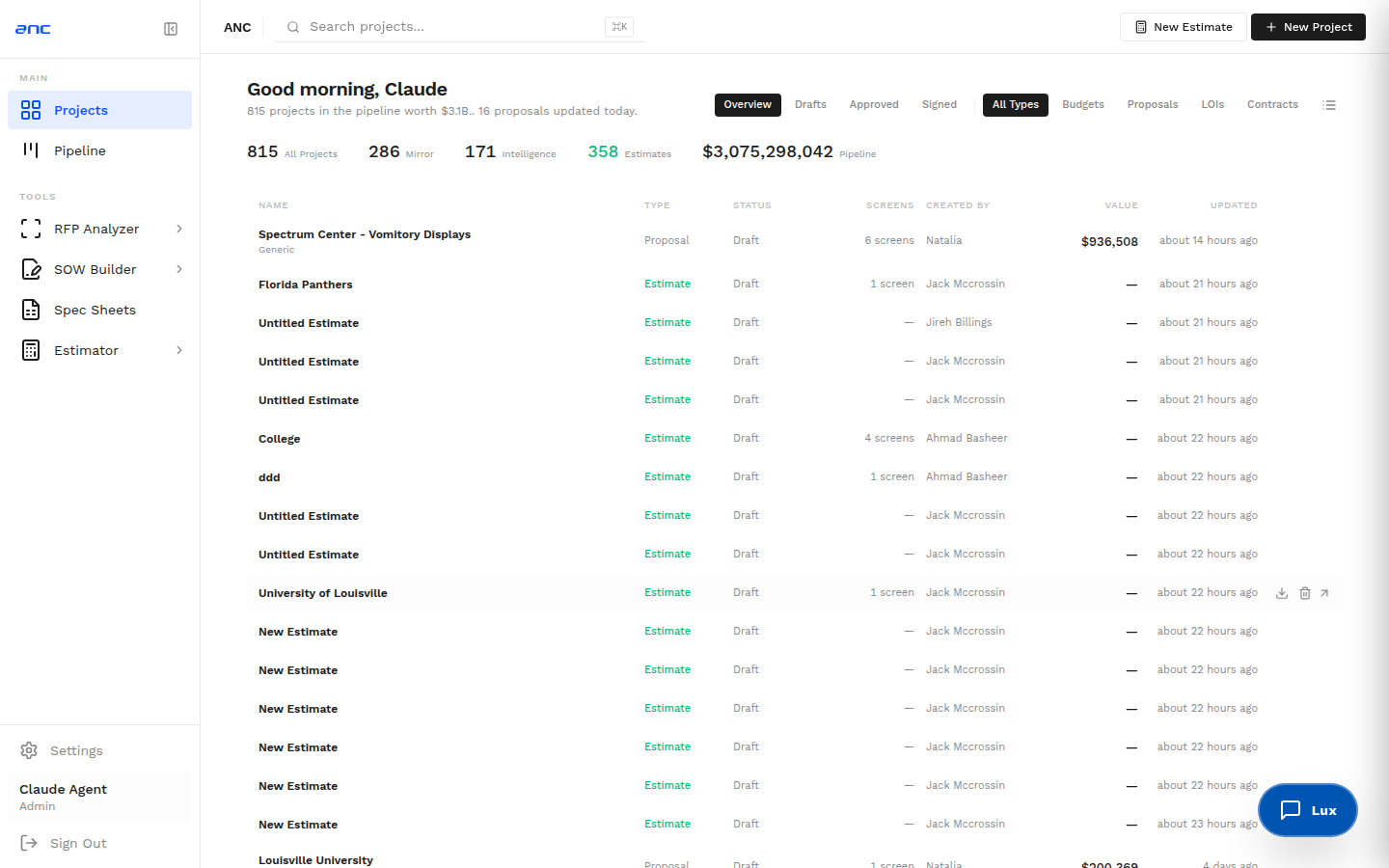
The active operating table for proposal work. Every deal that's been priced or that's in active estimation lands here.
When to use it: First thing in the morning — see what's moving, what's blocked, what's waiting on you.
What you can do:
- Filter by stage, owner, due date, vertical
- Open any project to jump straight into its estimate, SOW, or RFP analysis
- Bulk-archive stale drafts
Sidebar tip: Star the projects you're personally driving — they pin to a Favorites panel for one-click access.
Deep dive: Projects
Pipeline
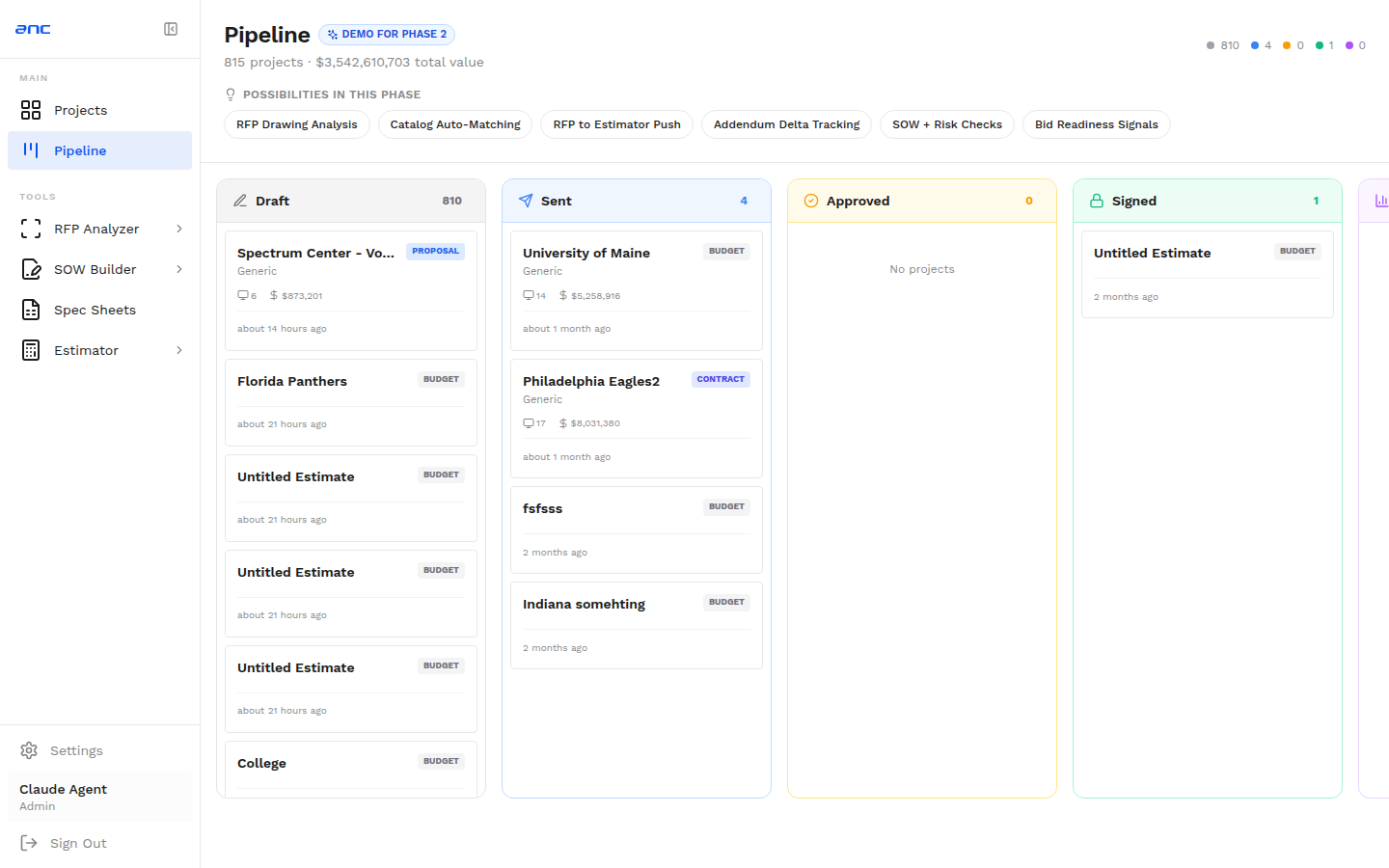
Every active opportunity grouped by stage. The classic kanban — drag a card across columns to move the deal.
When to use it: Pipeline reviews, Monday standups, "what's the realistic win rate this quarter" conversations.
What you can do:
- Drag cards to advance stage
- Click a card to open its full detail in a side panel
- Filter by owner, vertical, league, deal value
- Group by something other than stage (owner, vertical)
This view writes back into the CRM — the Opportunity updates in real time as you move cards here. Same record, two surfaces.
Deep dive: Pipeline
Estimator
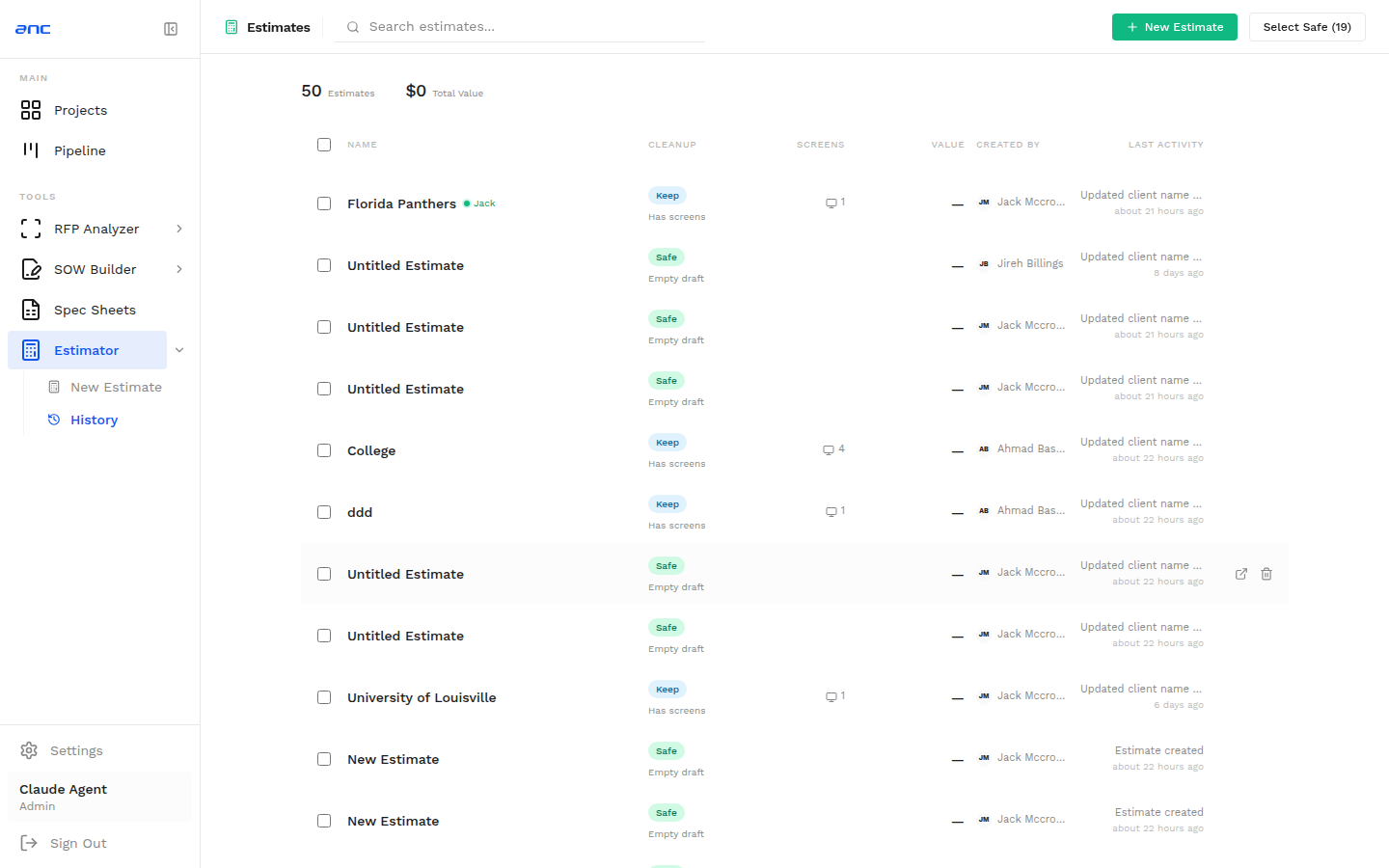
The core pricing tool. Take a requirement, turn it into a priced line-item list, ship it as branded Excel or PDF.
When to use it: Anytime you're pricing a deal. New estimates, revisions, alternates, comparisons.
What you can do:
- Add line items manually, or chat to the AI: "give me pricing for a 10-panel 4mm videowall with full install"
- Toggle pitch (3.9mm / 2.9mm) and size cards for courtside tables and stanchions — dimensions auto-populate from the product database
- Save revisions as you iterate; compare any two revisions side-by-side
- Export as Excel (Univer format — Natalia's preferred) or PDF
- Every export attaches automatically to the Opportunity in the CRM
Important: If the rate card changes, you re-pull current pricing — the estimator never silently overrides what you've already typed.
Deep dive: Estimator
RFP Analyzer
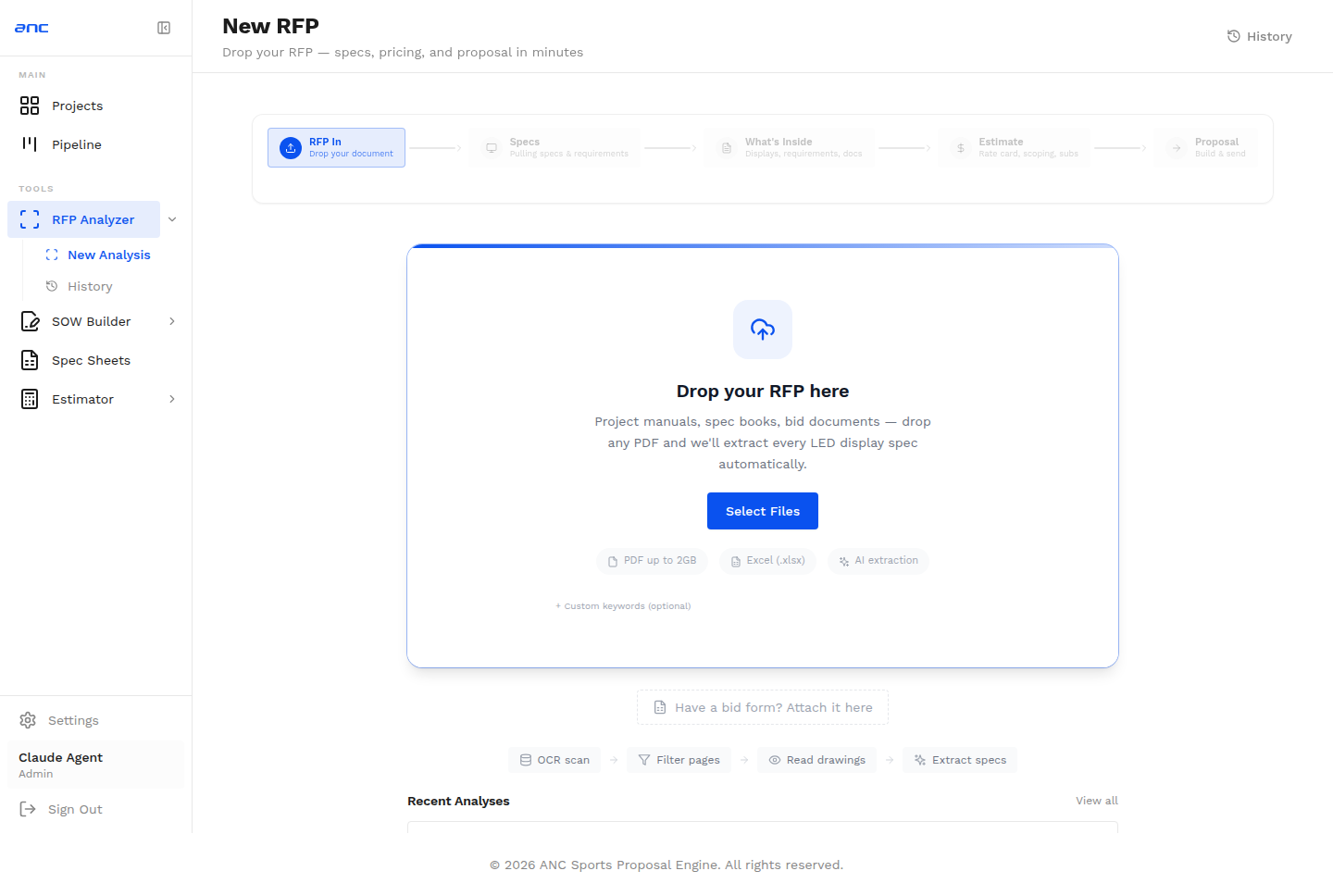
Drop a client's RFP document, get back a compliance matrix and a draft response.
When to use it: A new client sends you a 40-page RFP on Friday afternoon. Upload it; come back Monday with a pre-filled compliance matrix instead of starting from zero.
What you can do:
- Upload PDF, Word, or Excel
- AI extracts: scope items, mandatory requirements, evaluation criteria, deadlines
- For each requirement, the tool proposes an ANC response based on prior winning proposals
- Output: compliance matrix + first-draft proposal structure
- Every analysis is saved in RFP history so you can revisit it later
The RFP Analyzer follows ANC's approved response format so proposal outputs stay consistent.
Deep dive: RFP Analyzer
SOW Builder
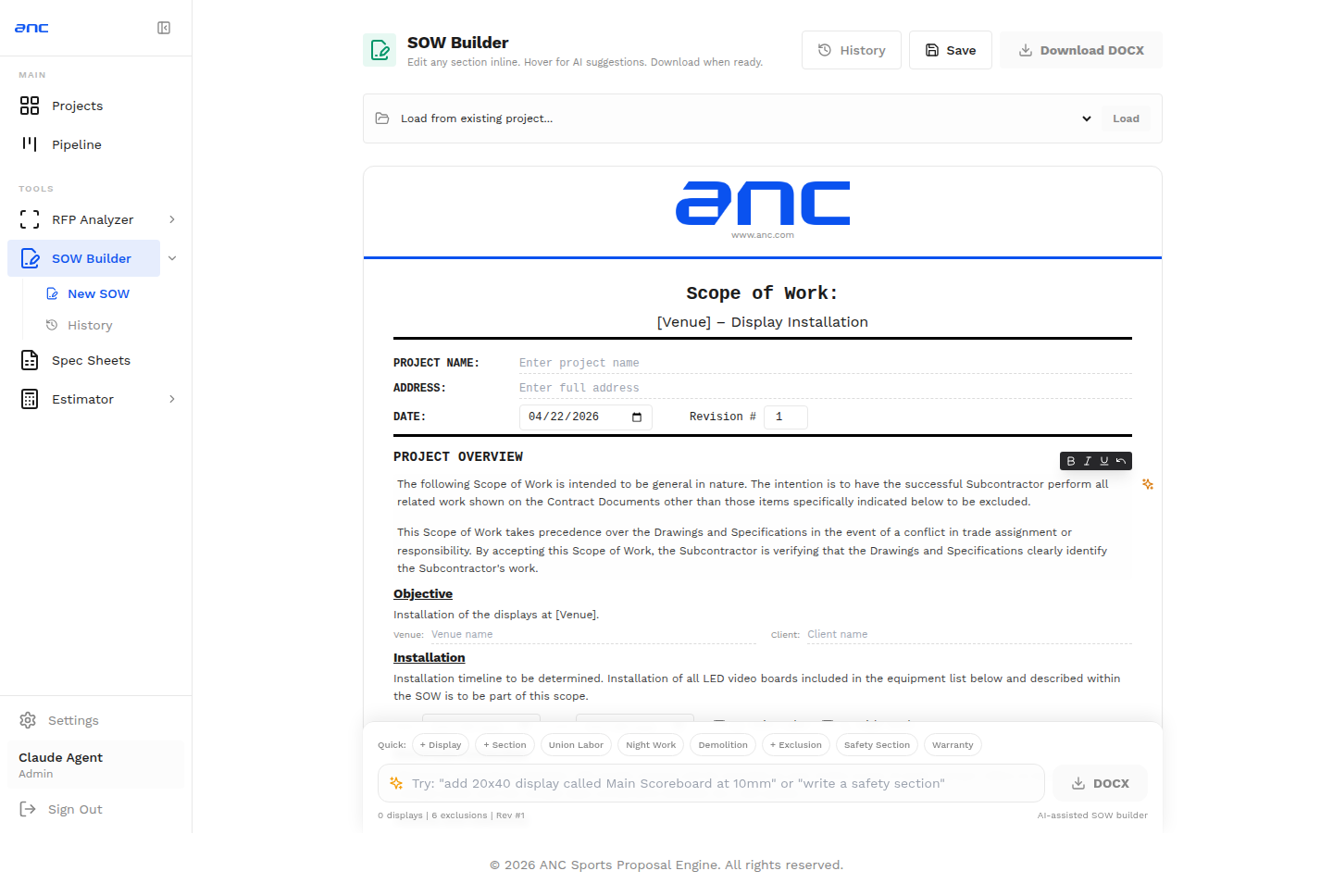
AI-assisted Scope of Work generation. Two flavors — Installation SOW and Premium SOW.
When to use it: After pricing is locked, before you send anything to the client.
- Installation SOW — for when ANC is doing the install. Site prep, rigging, cable paths, network drops, crew size, timeline, acceptance criteria.
- Premium SOW — for high-touch engagements: AV integration, content production, ongoing service.
What you can do:
- Click "Generate Installation SOW" on any Opportunity with a finalized estimate
- AI drafts the doc using line items + venue context + uploaded drawings
- Output is branded PDF + Word (.docx) — both attach to the Opportunity automatically
- Drop a client's existing SOW into the scanner to get back a structured summary of included items, excluded items, acceptance criteria, and timeline
Deep dive: SOW Generation
Spec Sheets
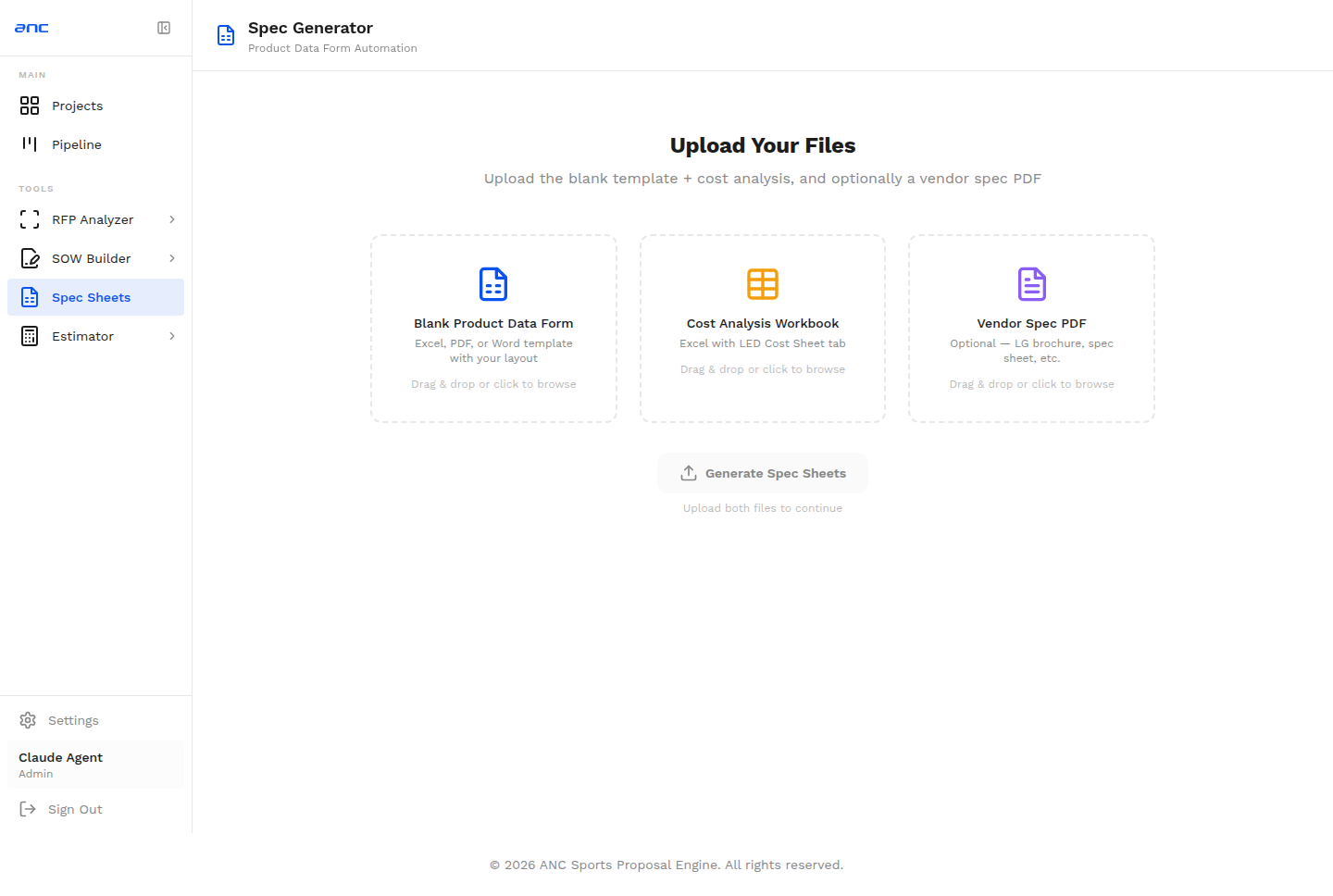
The product documentation library — cut sheets, technical specs, output-ready spec pages.
When to use it: Building a proposal package; client asks "what are the specs on the LED you're proposing?"; assembling a submittal package.
What you can do:
- Browse all products in the catalog (LED panels, courtside tables, stanchions, controllers, software)
- Pull the spec sheet for any product into a proposal as a ready-to-print page
- Add new spec sheets via Admin → Products
The Submittal Compiler pulls from this library when assembling packages — you don't have to manually attach cut sheets.
Settings
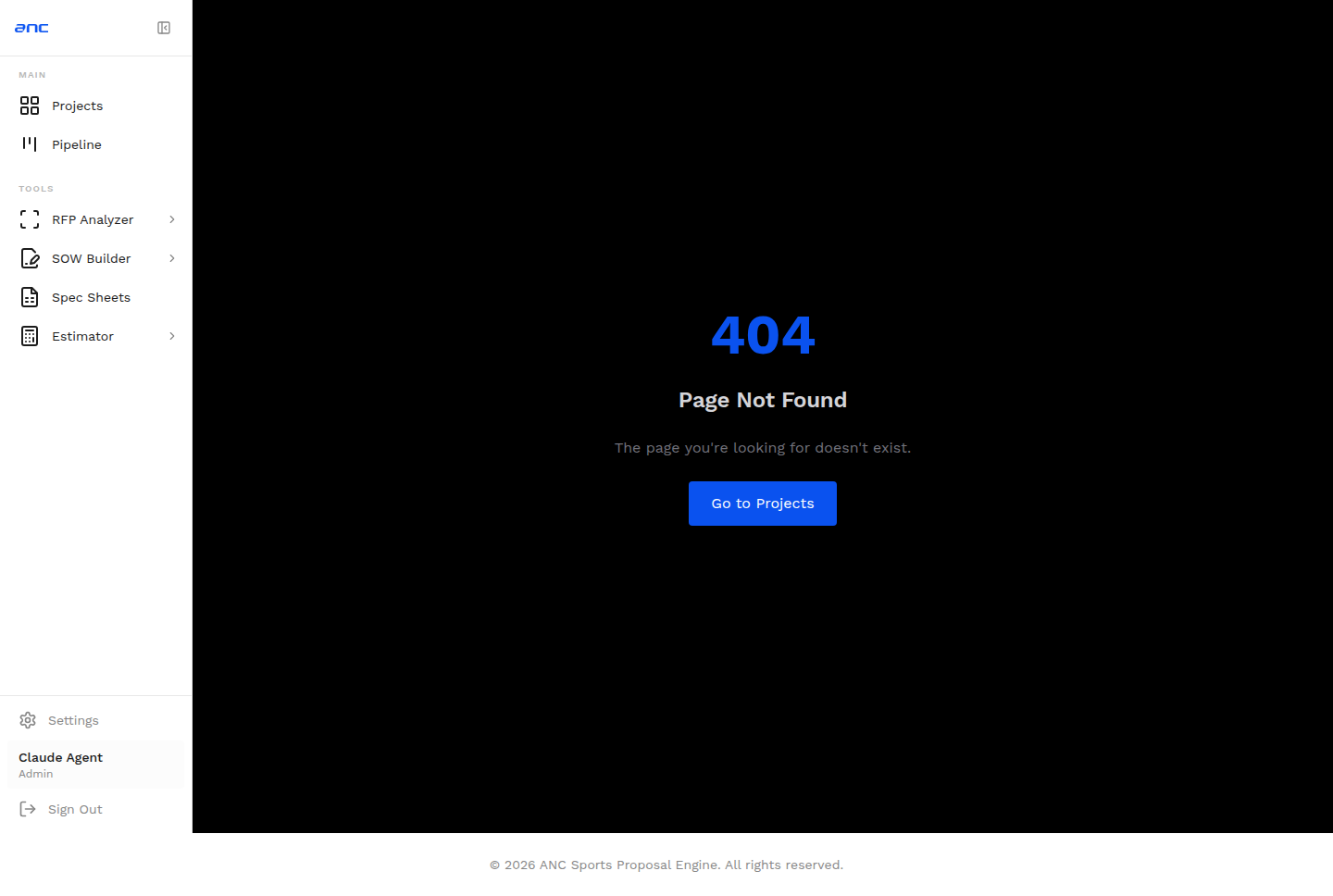
Account-level controls that shape how proposals are generated and presented.
When to use it: Onboarding a new team member, updating company branding, swapping the default SOW template, or adjusting approved AI settings.
What you can do:
- Manage users and roles
- Update branding (logo, colors, default header/footer)
- Swap SOW templates (Premium SOW default, Installation SOW default)
- Configure approved AI settings
- Set rate card preferences
Most users won't need this. Admins live here.
Proposal Detail
The detail workspace where scope, builder output, and final edits come together before handoff.
When to use it: Final review before a proposal goes out. Last-mile editing — fixing typos, swapping a line item, adjusting commercial terms.
What you can do:
- See the full assembled proposal preview
- Edit any section inline
- Generate a fresh PDF when ready
- Send for internal review (assigns a reviewer, posts in Slack)
- Mark as "sent" — locks the proposal and stamps the send date
Once a proposal is marked sent, the Universal CRM Push pipeline fires: PDF attached to the Opportunity, timeline activity logged, Slack notification posted.
How the modules connect
Pipeline  →  Estimator  →  SOW Builder  →  Proposal Detail  →  Sent
                                                  ↓
                                          Universal CRM Push
                                                  ↓
                                                CRM
                                          (PDF + activity)
In parallel:
- RFP Analyzer feeds requirements into the Pipeline (kicks off a new Opportunity if needed)
- Spec Sheets feed line items into the Estimator and assemblies into the Submittal Compiler
- Settings controls branding/templates/AI providers across all modules
Where to go next
- First proposal end-to-end: Draft a proposal from scratch
- Inbound RFP: Respond to a client's RFP
- AI agents in the engine: AI Agents
- How exports land in the CRM: Universal CRM Push