Service Dashboard Overview
A module-by-module tour of the Service Dashboard — what each surface does, when to use it, and what to do once you're there.
Service Dashboard Overview
A practical tour of every module in the Service Dashboard. Live at services.ancsports.net.
This page tells you which module to use; the Features section has the deep-dive on each one.
Dashboard
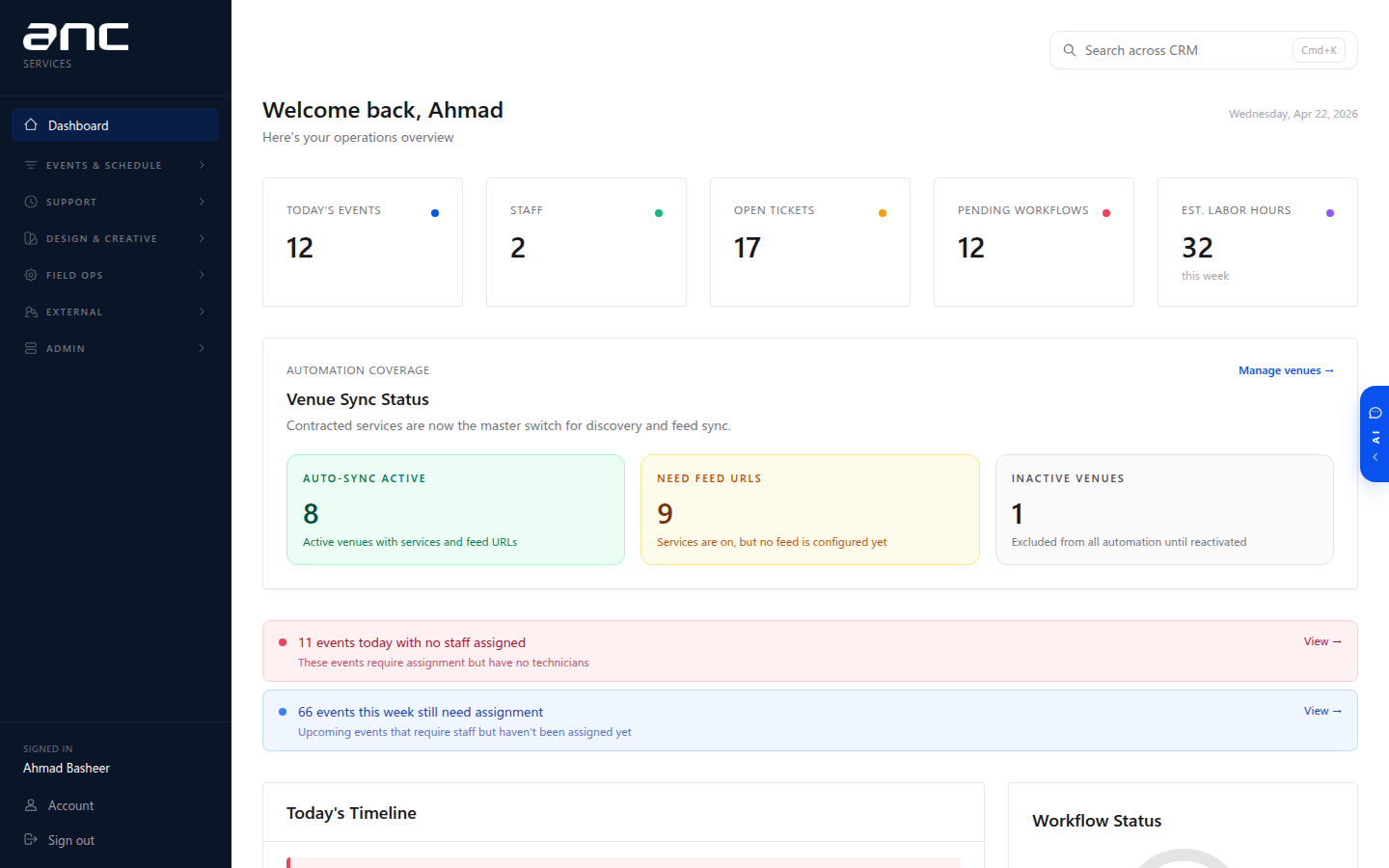
The home page — operational rollup of venues, events, tickets, and active workflows.
When to use it: First thing in the morning, last thing before you log off. Spot what's overdue, what's blocked, where the team is short-staffed.
What you can do:
- See ticket counts by status (new / in progress / escalated / overdue)
- See today's and this week's events
- Spot SLA breaches (red badges)
- Click any tile to drill into the underlying list
Design Requests
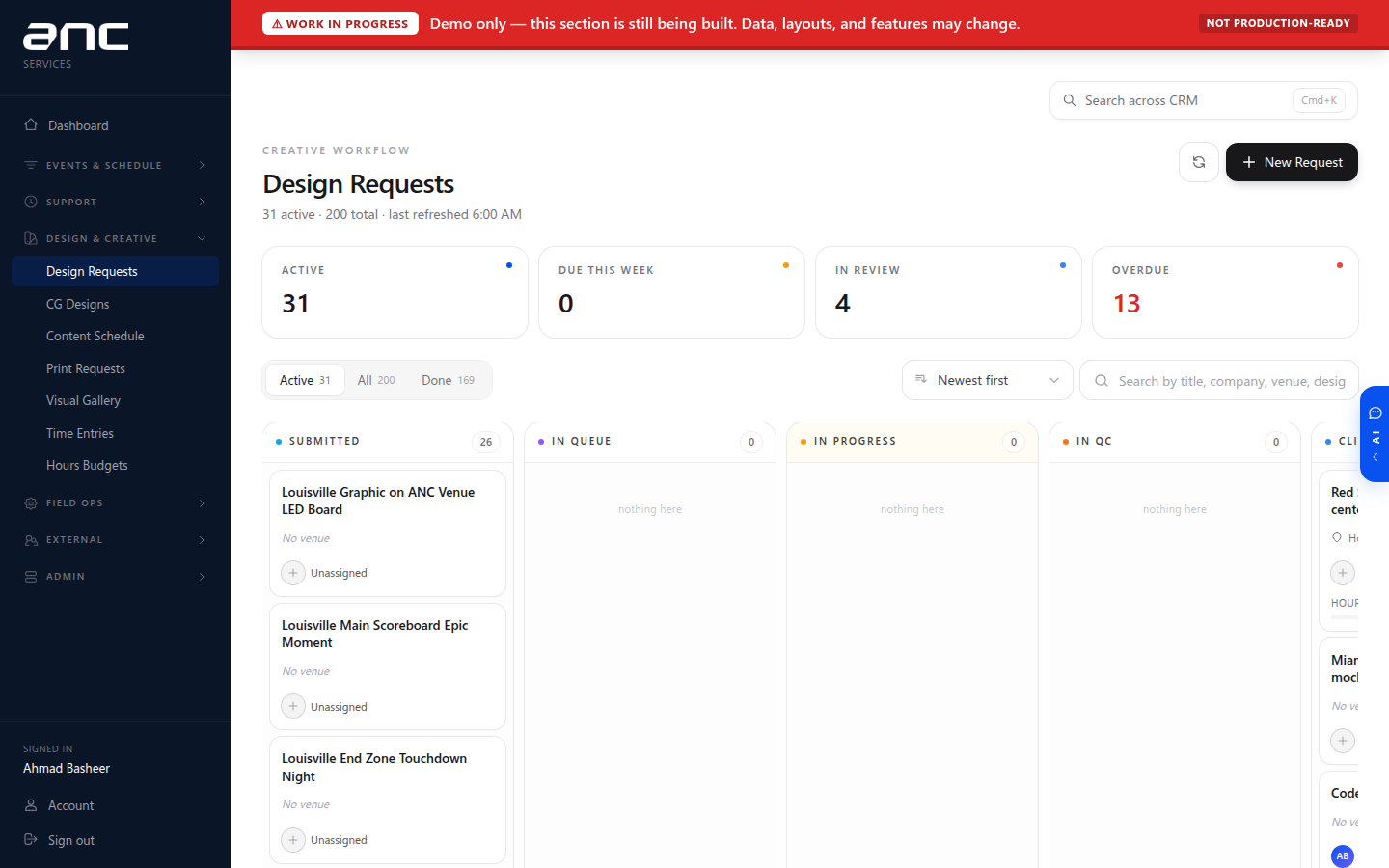
Where design work lives — graphics, content, creative tasks. Status tracking and client-review coordination.
When to use it: Anytime a client asks for a graphic, a video, a halftime promo. Anyone on the design team checking what's in their queue.
What you can do:
- Submit a new design request with brief, due date, target screen
- Track status: new → in review → approved → scheduled
- Attach files, leave comments
- Filter by client, designer, status, due date
Content Schedule
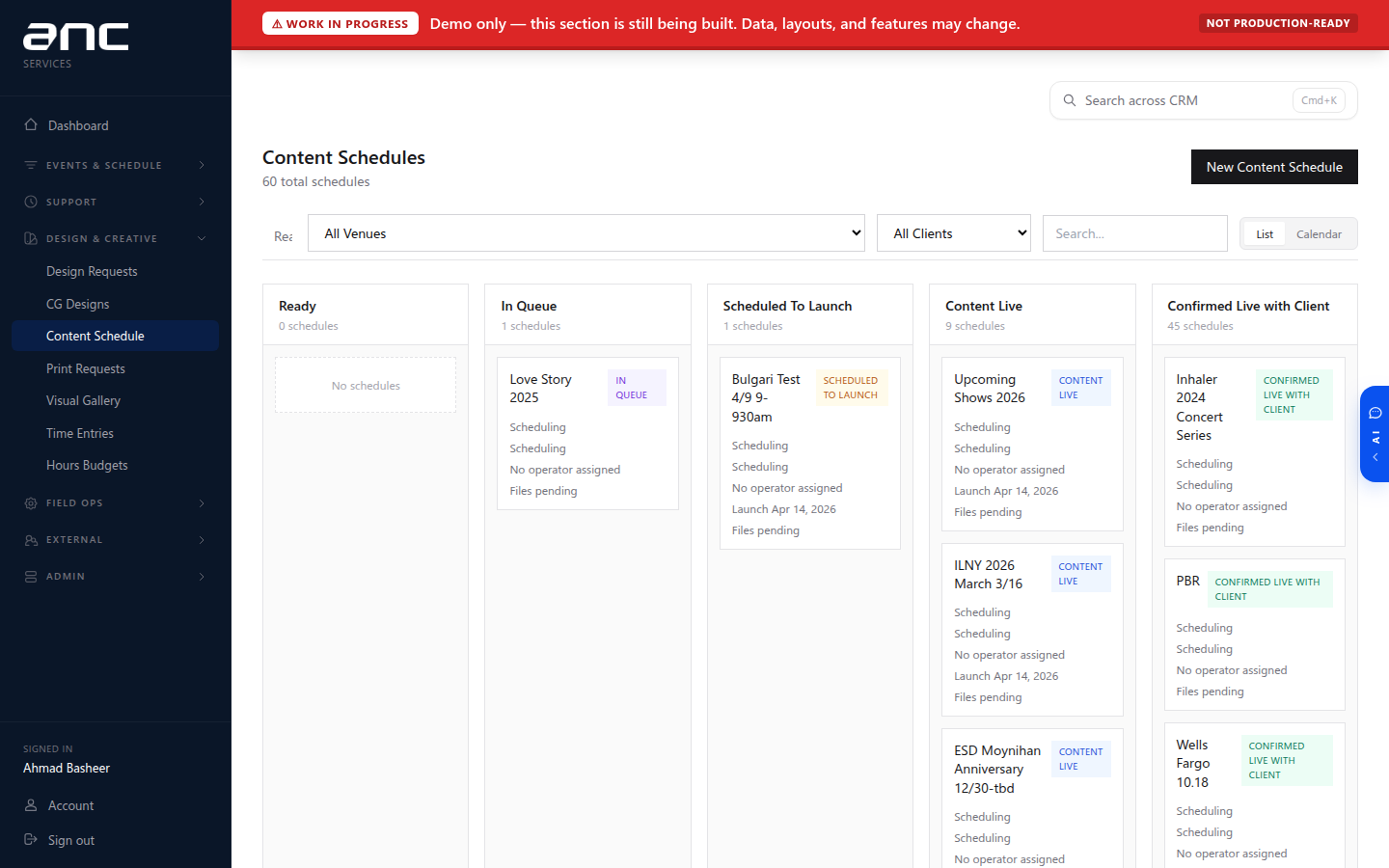
When content actually runs on the boards — the play schedule, in-game timeline, halftime sequence.
When to use it: Pre-event content prep, mid-event troubleshooting, post-event reconciliation.
What you can do:
- Switch between list and calendar view
- See what's scheduled for tonight, this week, the season
- Cross-check against the design request queue
- Spot gaps in content for an upcoming event
Print Requests
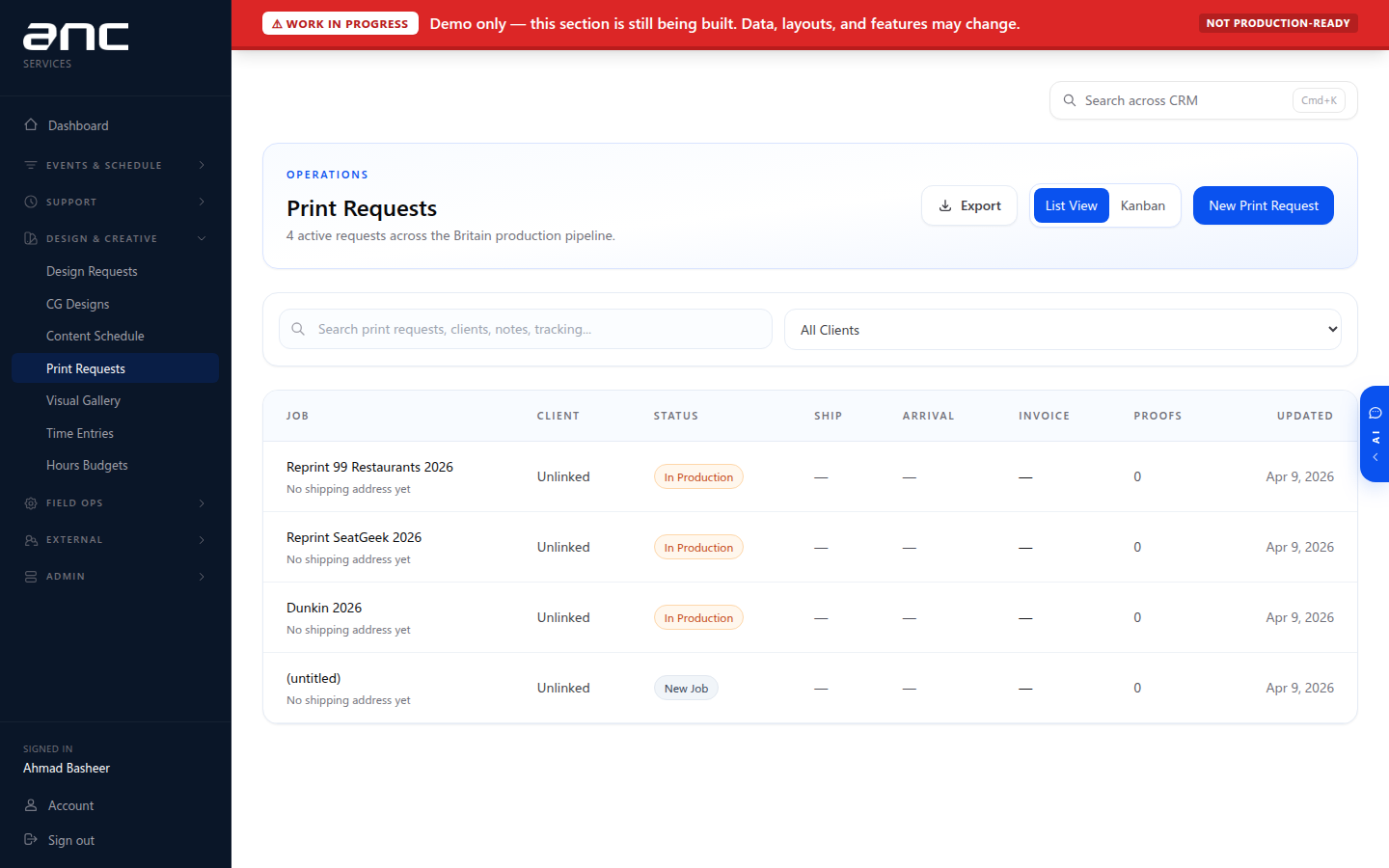
Replaces the old Wrike-based workflow for Britain's signage jobs. Banners, backdrops, vinyls, anything printed.
When to use it: Client orders signage, print shop processes the order, we install it.
What you can do:
- Submit a print request (artwork, dimensions, finish, due date)
- Track production status: queued → in production → shipped → installed
- See print partner turnaround
- Approve proofs before final print
Parts Orders
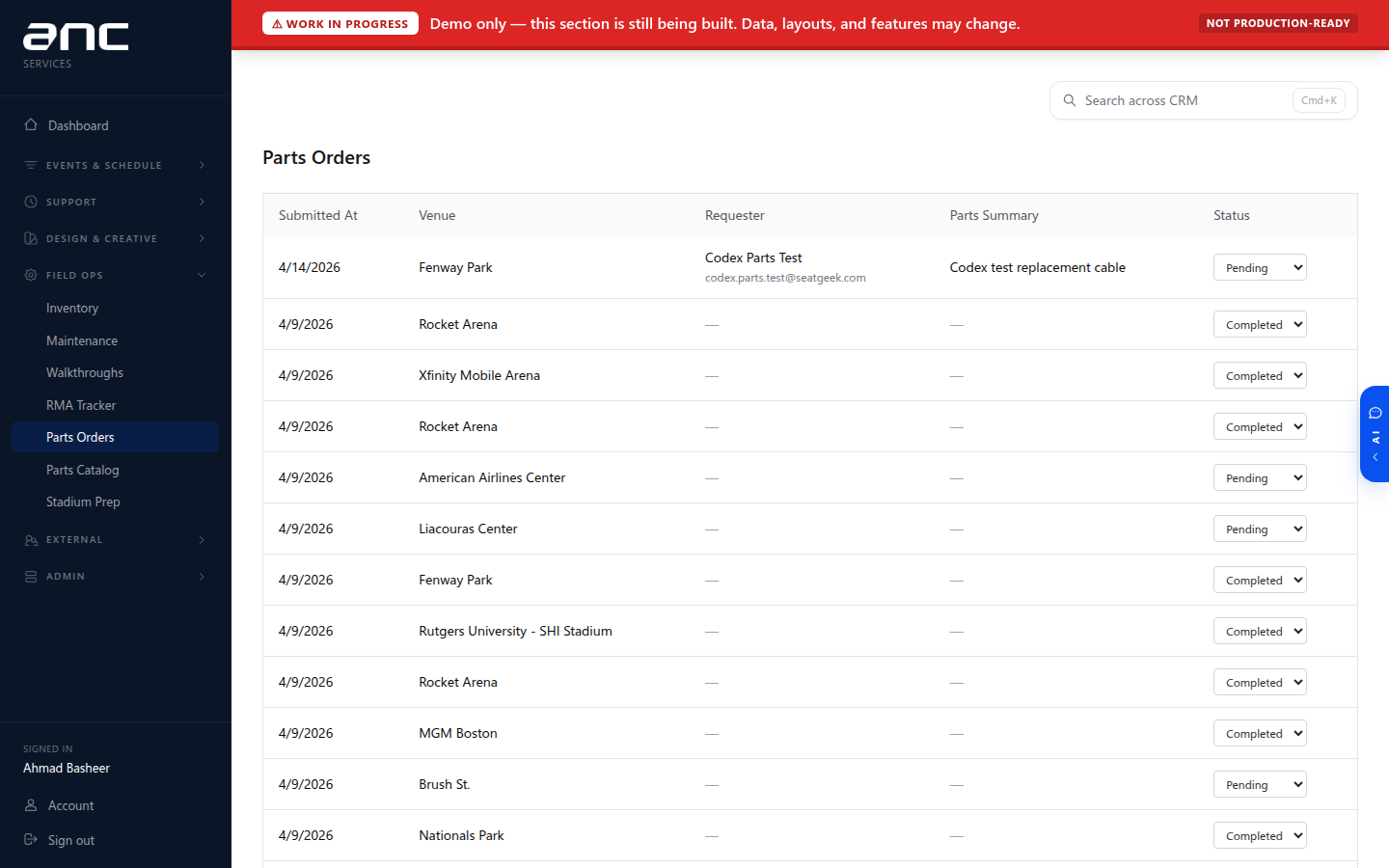
Inbound parts requests. Replaces the email-and-spreadsheet flow Gianni's team used previously.
When to use it: A tech in the field needs a replacement module. A venue is short on cables. A pre-season inventory check turns up a gap.
What you can do:
- Submit a parts request (part number, quantity, urgency, ship-to)
- Track fulfillment: requested → ordered → shipped → received
- Sort by urgency, venue, requester
- Mark received when they arrive
Stadium Prep
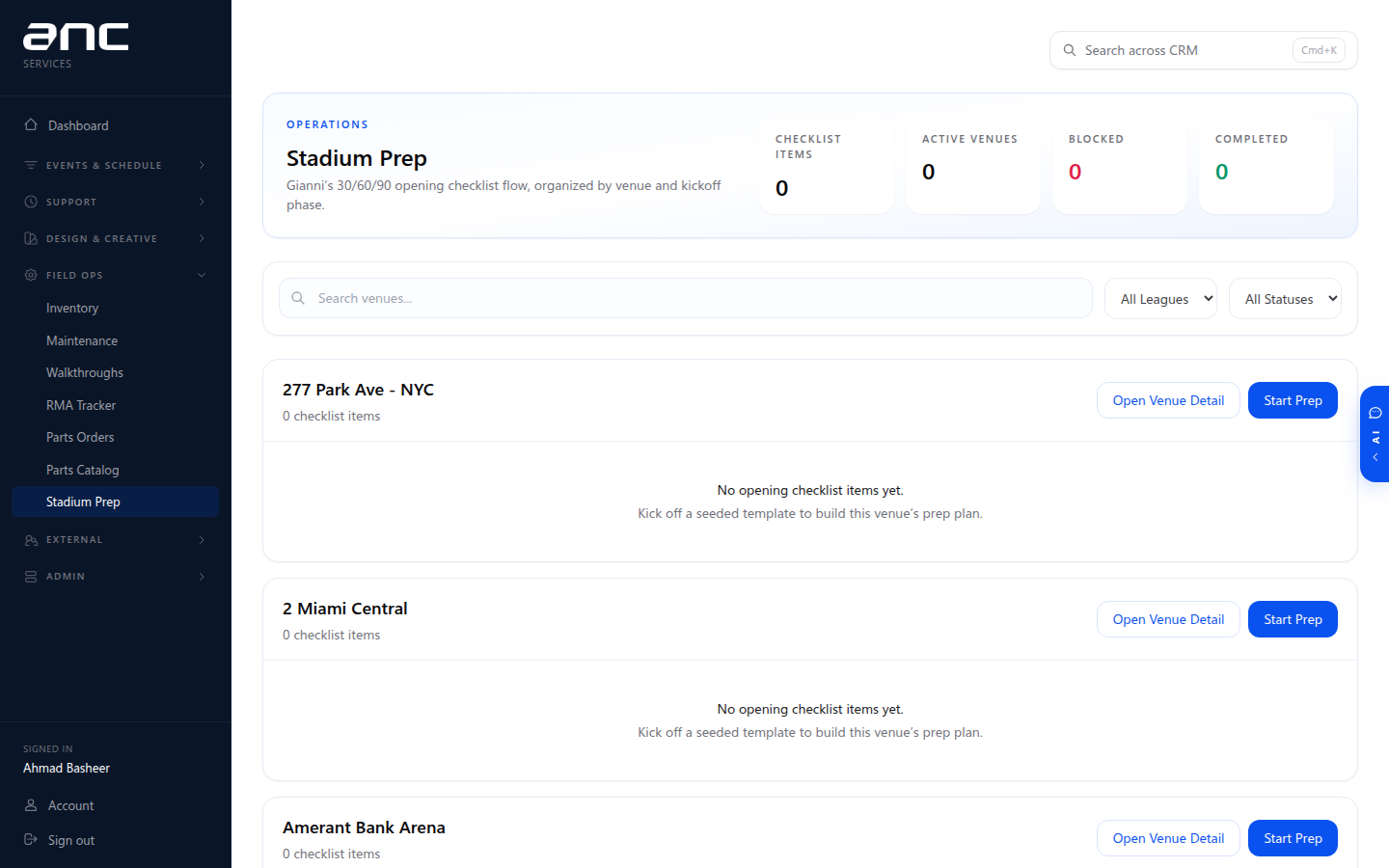
The 30/60/90-day opening checklist for every venue. Pre-season prep work, by venue and by phase.
When to use it: End-of-summer for football venues, end-of-winter for baseball. Anytime a new venue is going live.
What you can do:
- Open the checklist for a specific venue
- Mark items complete (check, partial, blocked)
- Assign items to specific techs
- See aggregate readiness across all venues
Hours Budgets
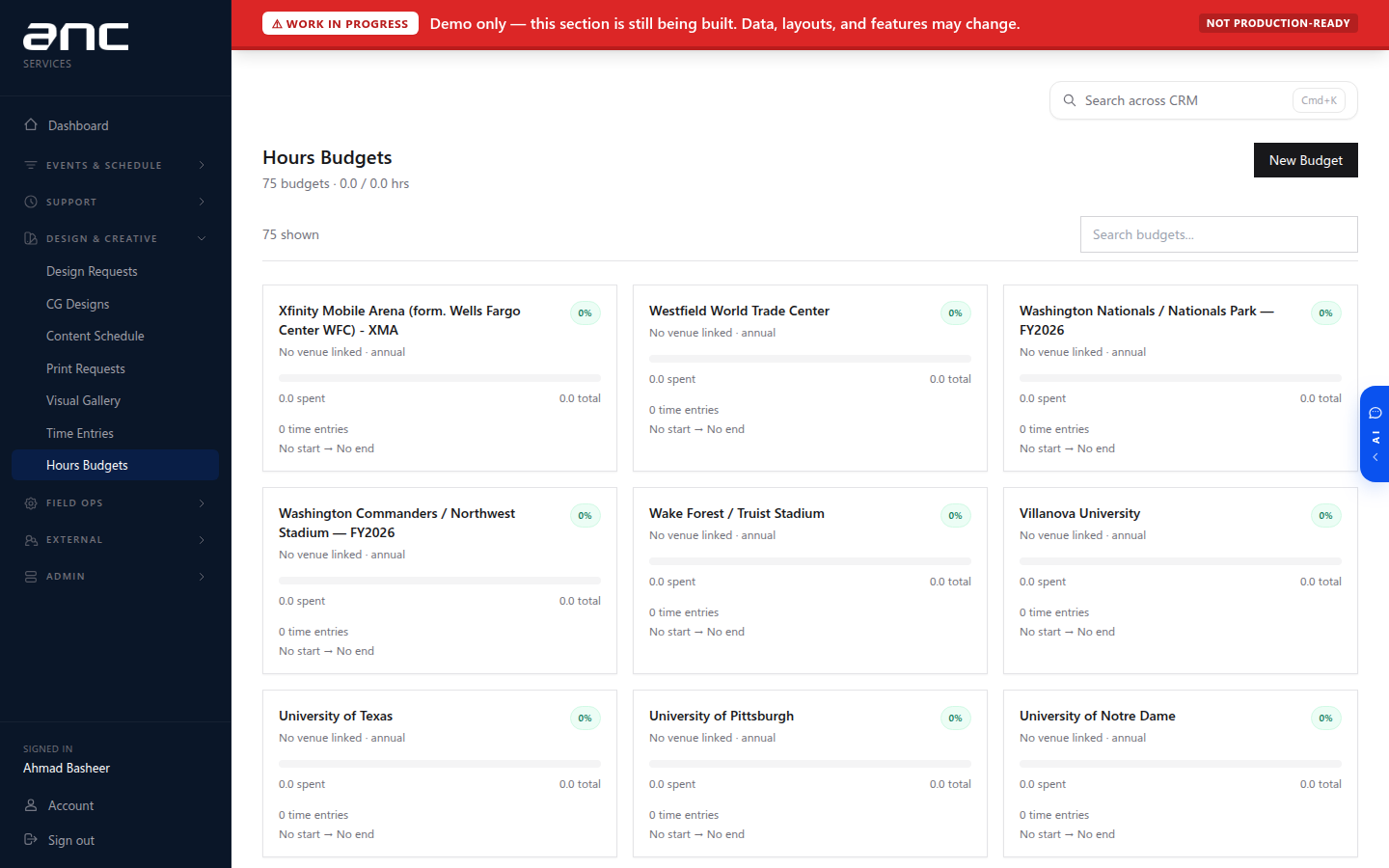
Designer labor tracking — actual hours used vs. client allocations. Alert thresholds when budgets get tight.
When to use it: Mid-month account check-ins, when a client asks "how much of my hours are left," when planning the next quarter.
What you can do:
- See per-client budget consumption
- Drill into individual designer time
- Set alert thresholds (e.g., notify at 80% used)
- Export the report for the client
Inventory
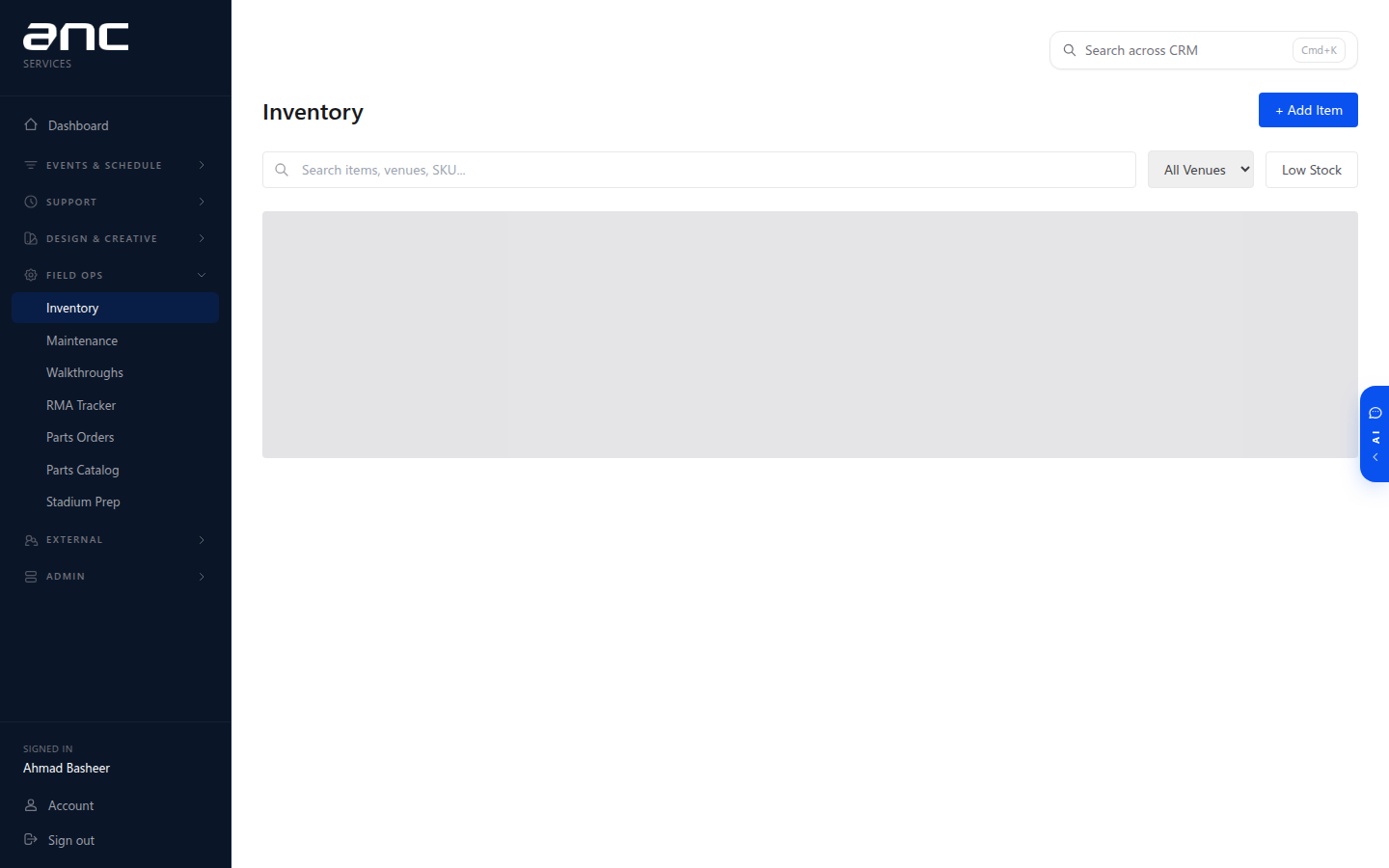
Display and equipment ledger for every venue. What's installed, what's spared, what's in the truck.
When to use it: Anytime you need to know "what hardware is at this venue," before a maintenance trip, during a warranty claim.
What you can do:
- Filter by venue, equipment type, manufacturer, model
- See serial numbers, install dates, warranty status
- Mark items as faulty, retired, transferred
- Generate a venue-specific inventory report
Maintenance
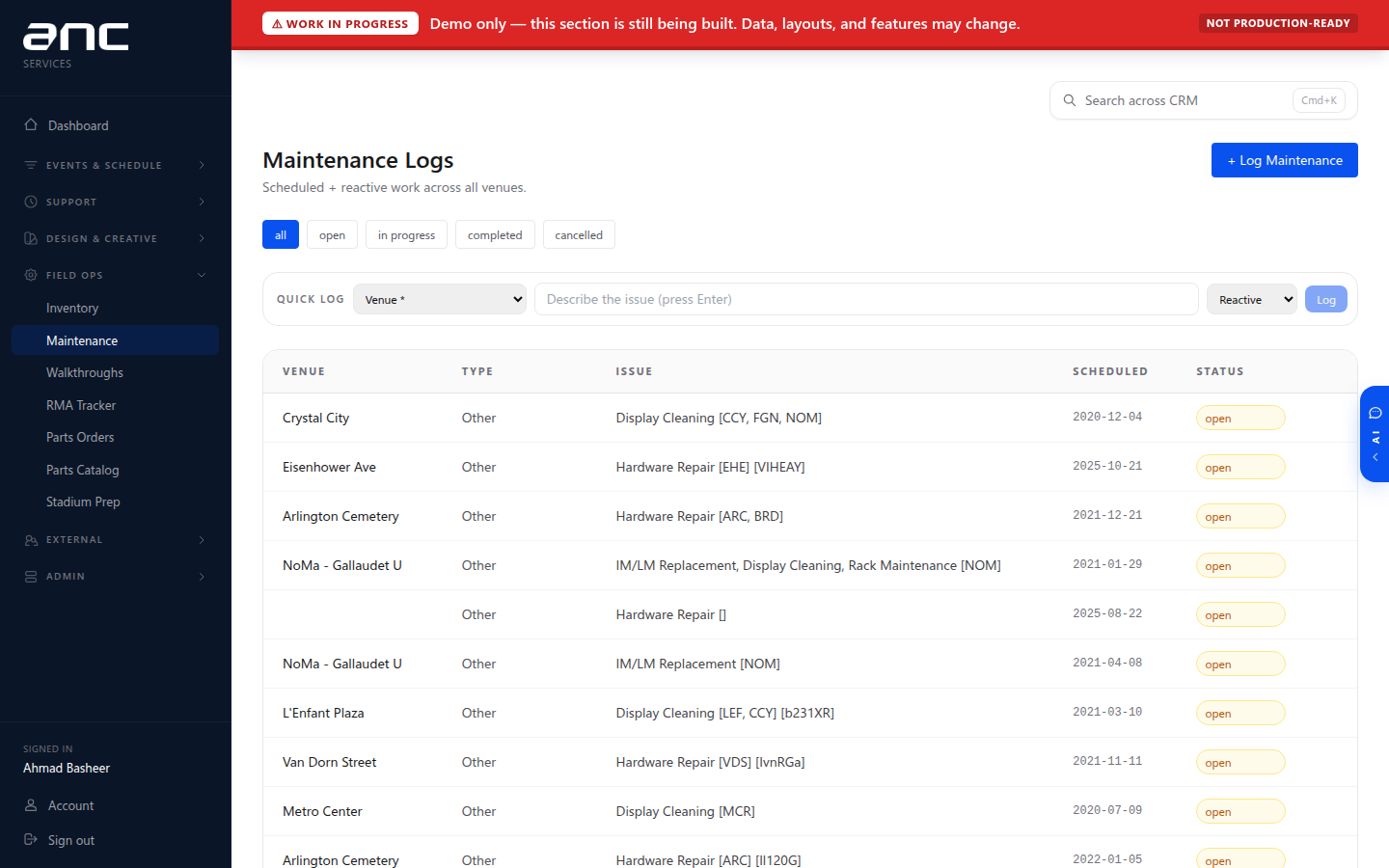
Active maintenance issues, scheduling, and follow-up work across venues.
When to use it: Tech support triaging hardware issues, planning the maintenance route for the week, post-issue follow-up.
What you can do:
- Log a maintenance issue (venue, equipment, symptom, severity)
- Schedule a tech visit
- Track resolution status
- Link to the spare parts ordered for the fix
Walkthroughs
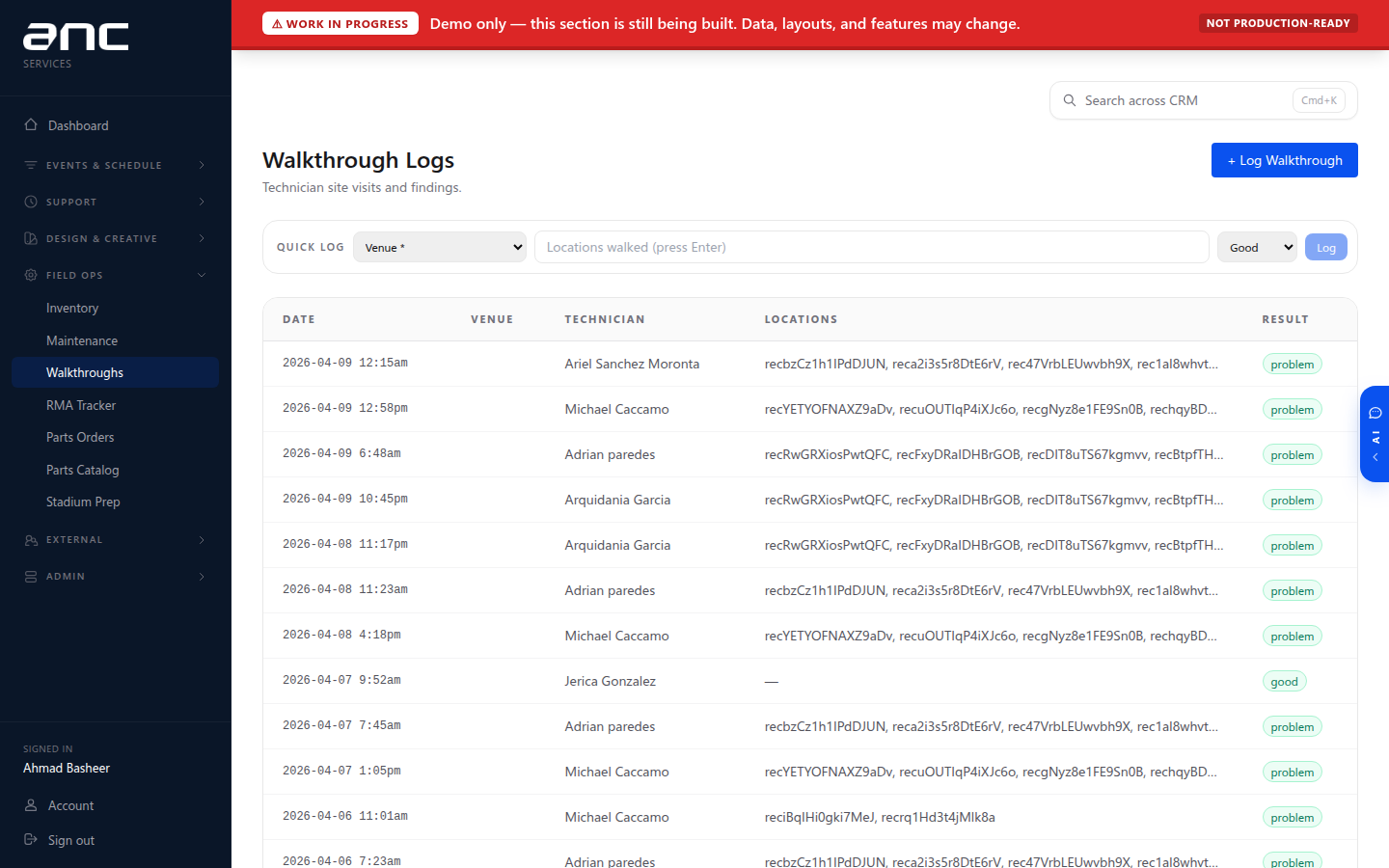
Field inspection records — findings, technician notes, photos.
When to use it: Pre-season audits, post-incident inspections, client walkthroughs.
What you can do:
- Create a walkthrough record (venue, date, lead tech)
- Add findings with photos and notes
- Tag issues that need follow-up (auto-creates a maintenance task)
- Export a PDF report for the client
IoT Operations Workspace
Spreadsheet-style workspace for the physical venue layer: displays, rack/device details, IP notes, walkthrough logs, maintenance rows, forms, and operational documents.
When to use it: Joe's team, Nick, and field techs need a fast table view for equipment and walkthrough data. Use it when the record is operational table data, not a support ticket conversation.
What you can do:
- Open table views for displays/assets, walkthroughs, and maintenance
- Filter by venue, status, location, display type, or technician
- Update rows directly as field information changes
- Work with operational documents and forms beside the live data
- Ask the assistant to query, count, create, update, or draft from the workspace
Portal Admin
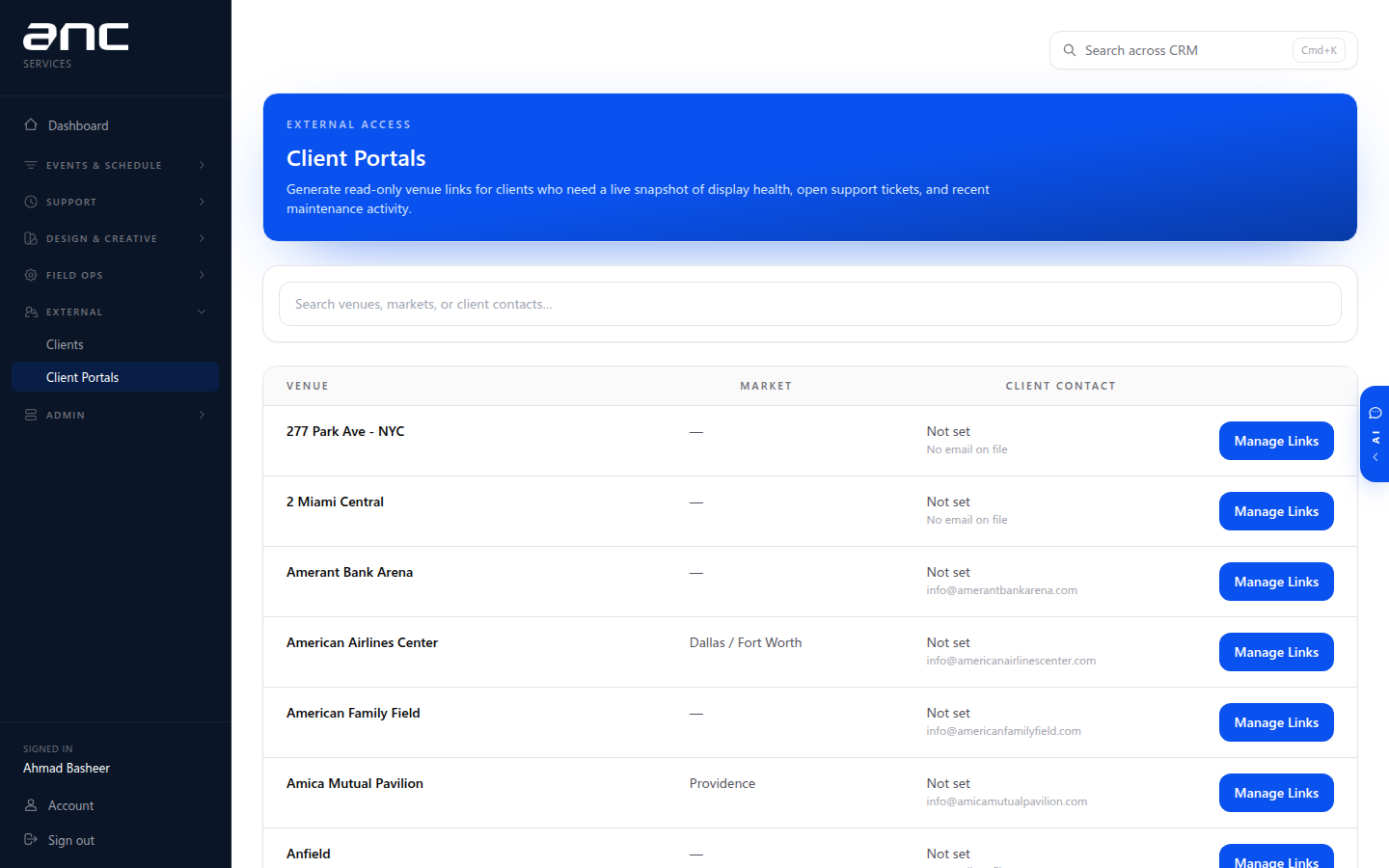
Manage the read-only client links per venue.
When to use it: Onboarding a new venue, rotating an exposed link, auditing who has access.
What you can do:
- Generate a portal link for any venue
- Revoke or rotate existing links
- See last-accessed timestamps
- Customize what's shown on each portal
Public Portal
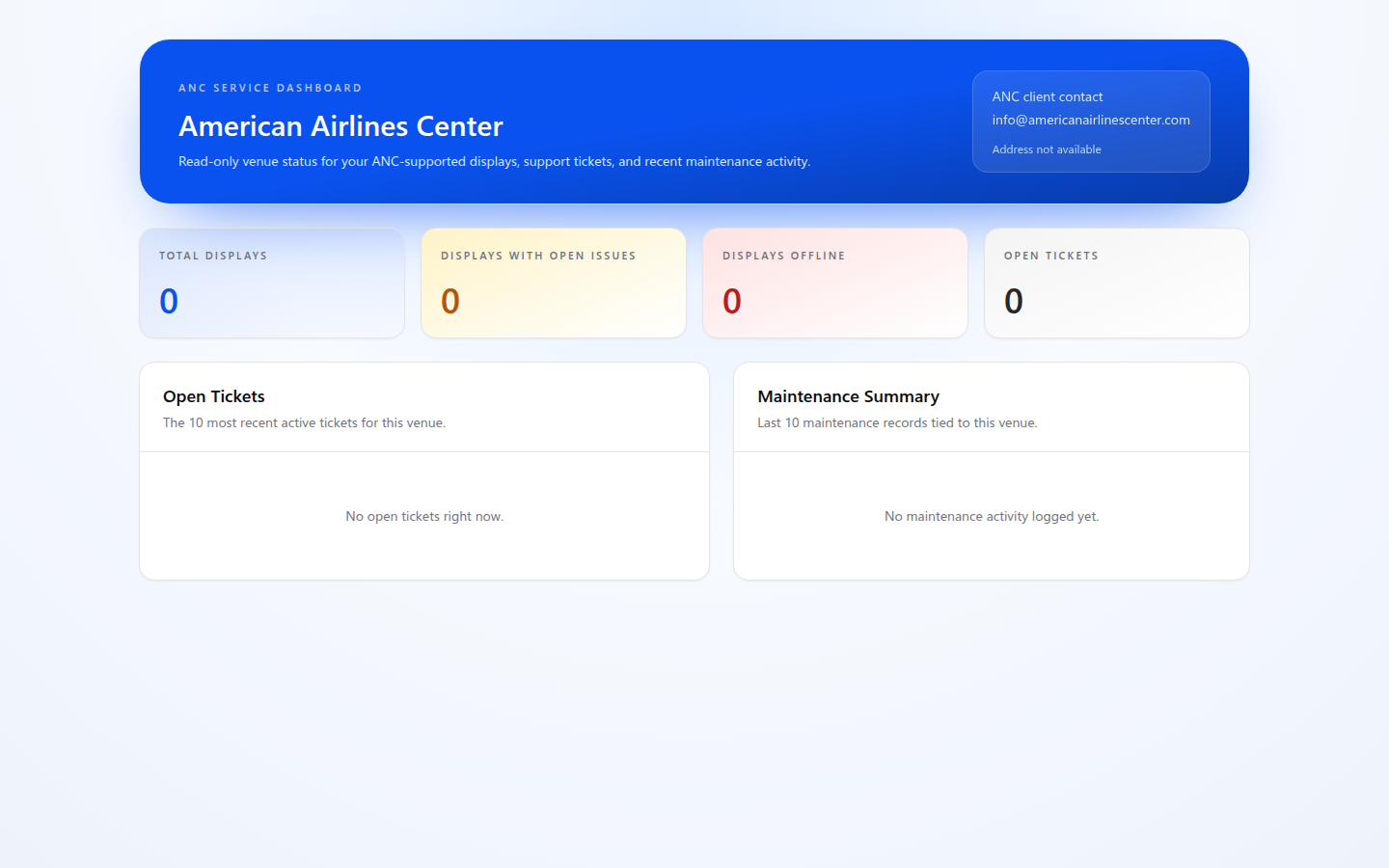
Read-only venue page — what the client actually sees when they open their portal link.
When to use it: Sanity-check what the client is seeing, send the link to a new venue, debug a "I can't see X" question.
What the client sees:
- Live workflow status for upcoming events
- Open tickets with status
- Recent activity timeline
- Direct "open a ticket" form
No login required — they just use the link.
How the modules connect
Events ─────┬───→ Workflows ──→ Tickets ──→ Reports
            │
            └───→ Staff & Assignments

Voicemail ──→ Tickets ──→ Slack notifications

Design Requests ─┬─→ Content Schedule ─→ Run on boards
                 └─→ Hours Budgets

Inventory ──→ Maintenance ──→ Parts Orders
        └──→ IoT Operations Workspace ──→ Walkthroughs
Most day-to-day work flows through Events → Tickets. The other modules support specific roles (designers in Design Requests + Hours; techs in Maintenance + Inventory + Parts; field ops in IoT Operations Workspace; admins in Portal Admin + Settings).
Where to go next
- First-time tech: Roles and Access — what your role can see and do
- Run an event end-to-end: Workflows — check-in to post-game report
- Phone integration: Voicemail → Ticket — Zoom Phone auto-creates tickets
- Physical venue data: IoT Operations Workspace — displays, walkthroughs, maintenance, forms, and documents
- AI diagnostic: AI Assistant